App Reference
Every control,
annotated.
This page explains the emulator controls as they behave in the app: the calculator, the printer, the debug pane, and the settings that affect a session.
The calculator
The calculator view is the main working surface. On iPhone and on iPad in portrait, it uses the same key layout as the app screenshot; on iPad in landscape, the layout mirrors the Mac view.
The top display area shows the current number and status indicators, the cue card area directly beneath it shows module/context notes, and the keyboard area contains the full key matrix for normal operation.
Bottom toolbar (left to right): Reset (long press: Reset + Memory wipe), Model selector (TI-59/TI-58/TI-58C), Read Magnetic Card, Write Magnetic Card, Preset, Settings.
The printer
The printer view has a PC-100C badge at the top, a dot/text toggle, and hardware-style buttons for print and advance. On all builds (including iOS and iPadOS), you can also copy the paper strip to the clipboard or cut it away when it gets too long.
The text view is useful when you want to read or copy output quickly. The dot view is the closer match to the physical printer.
The debug pane
The debug pane has three tabs: CALCULATOR, CPU, and LOG.
- CALCULATOR — Program listing (from RAM) centred on the next instruction to execute, with live registers and flags.
- CPU — Execution trace of ROM instructions that already ran. State shown is after each instruction. Scrollable history, one-opcode step.
- LOG — Text output, raw SCOM register dumps, and the TRACE toggle. Use TRACE to capture a binary session file for detailed analysis with read_trace.py.
The CALCULATOR and CPU tabs have different step semantics: CALCULATOR advances until the program counter changes; CPU advances exactly one ROM opcode.
Settings
The settings sheet controls the startup model, the active Solid State module, keyboard feedback on iOS, the LED font style, and the trace-file location.
The trace-file size limit is also adjustable on macOS and on iPad in landscape so long debug sessions do not grow without bound. This mainly prevents iCloud storage overcommit when trace files are written to iCloud Drive.
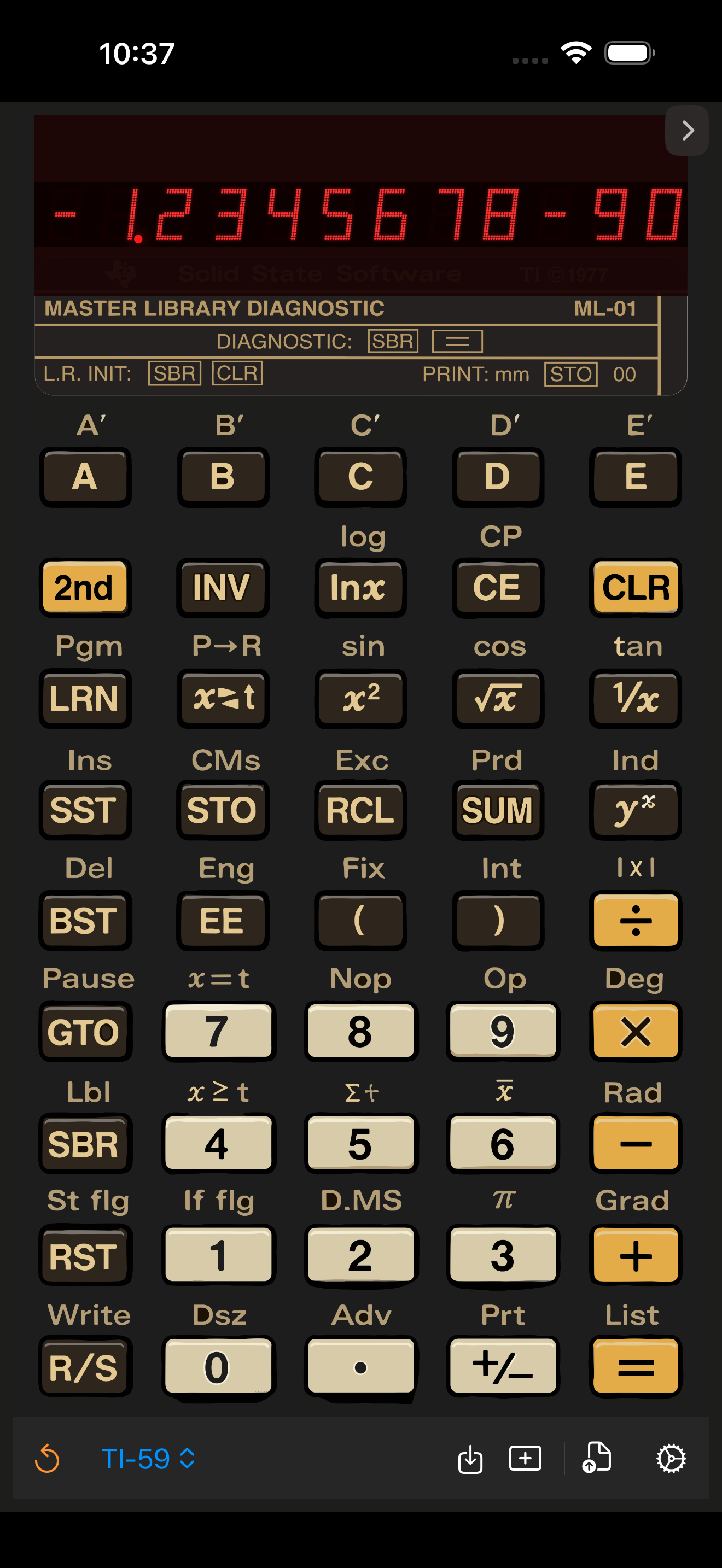
- Reset (long press: Reset + Memory wipe)
- Model selector (TI-59 / TI-58 / TI-58C)
- Read Magnetic Card
- Write Magnetic Card
- Preset
- Settings
- Swipe to printer